You are here: Validating requirements > Generating an office document
Generating an office document
Overview
Blueprint allows you to generate Microsoft Word and Microsoft Excel documents using the data from your Blueprint artifacts.
Before you can generate office documents, your project administrator must author a template and add the template to the project.
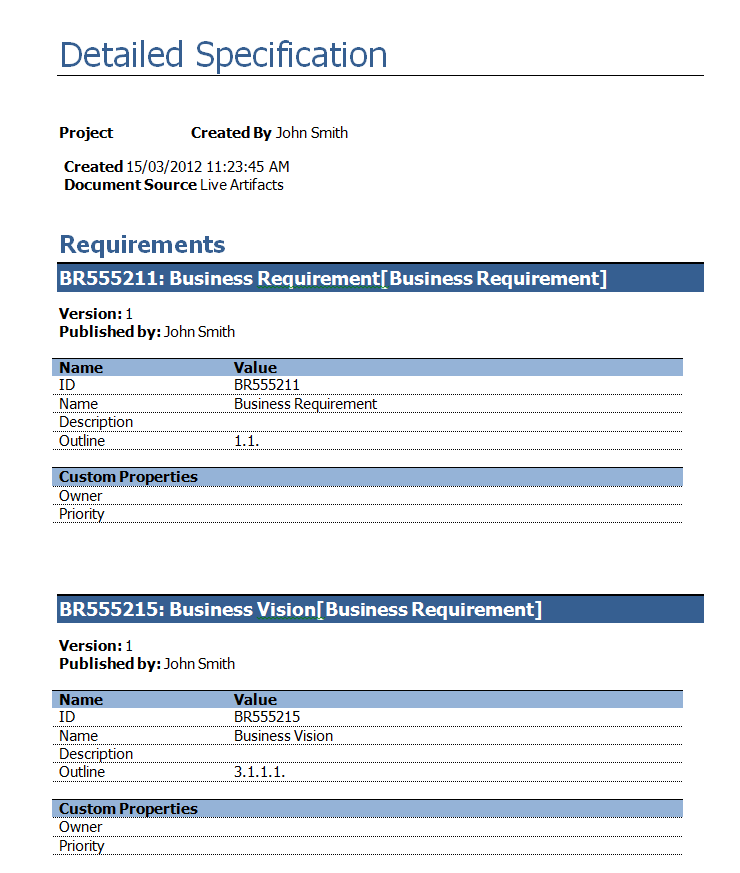
Here's an example of a generated document in MS Word format:
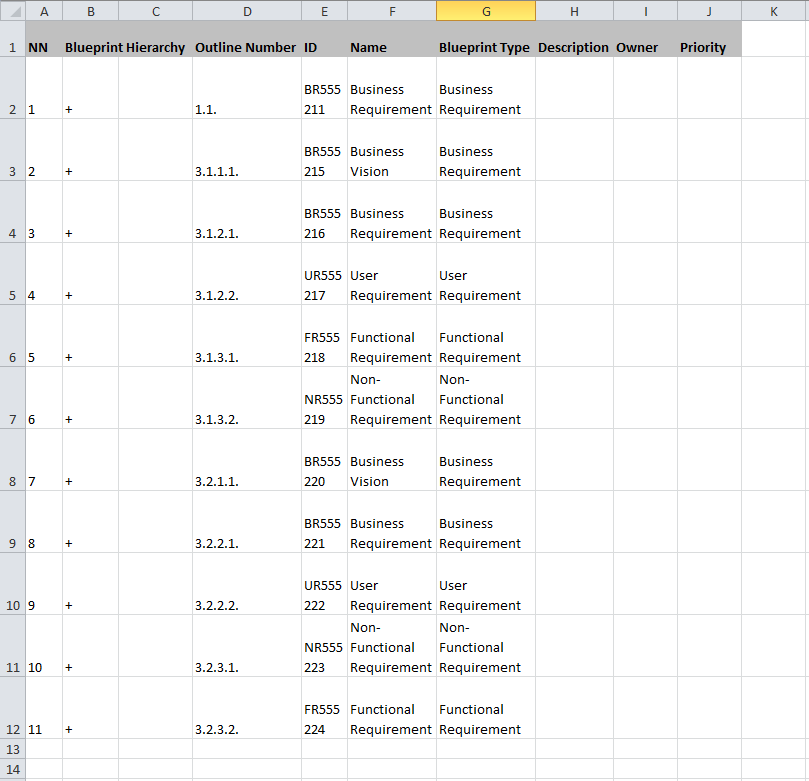
Here's an example of a generated document in MS Excel format:
Generating an office document
You can export artifact data to a Microsoft Word or Microsoft Excel document, assuming your project administrator has added templates to the project.
To generate a Microsoft Word or Microsoft Office document:
-
 Click the Office Document button on the ribbon (Import/Export tab, Export group).
The Source Project screen of the Generate Office Documents dialog appears.
-
Select the project that contains the artifacts that you want to include in the generated office document, and then click Next.
The Document Template screen appears.
-
Select the document template to use, and then click Next.
The name and format of each template is displayed. The template format can be MS Word or MS Excel. MS Word templates can only produce MS Word output. MS Excel templates can only produce MS Excel output.
Note: If there are no templates listed, your project administrator must author a template and add the template to the project.
After you click Next, The Document Source screen appears.
-
Select whether you want to use data from live artifacts, or data from a baseline or review, and then click Next.
If you select the Baseline or review option, you must select a baseline or review.
After you click Next, the Document Scope screen appears.
-
Select the document scope, and then click Next.
Select the artifact(s) that you want to include in the document. Simply select the artifacts and click the Add button.
Tip: To select all artifacts in a folder, select the folder and then click Select All.
-
Specify your document output options.
-
Specify the Document Name and location for the generated document.
-
Generate images for document output: Defines whether or not you want to generate images for graphic artifacts that you are exporting, such as diagrams. If this option is disabled, images are not exported.
If this option is disabled, images (that is, graphic artifacts) are not included in the document output.
When office documents are generated in Blueprint, they are automatically saved in Blueprint for reference purposes.
-
Click Finish.
The document generation has been scheduled and placed into the job queue.
When the document has generated successfully, you can click the notification icon ( ) to see the new . Simply open the document artifact and click the Download link to download or view the generated Office document.document artifact
Note: If you are using Internet Explorer 8, you must enable the automatic prompting for file downloads security setting before you can download the file from Blueprint. To enable this setting, click > > > Custom level... > Downloads and then enable the Automatic prompting for file downloads option.
Learn More
Managing office document templates
Document artifacts